



I have often been asked to blog about Mac Tips (since I know a LOT of Mac secrets!) Well, tonight I responded to a fellow Twitterer with some help with iPhoto and after sending the e-mail, thought I’d post it here just in case it helps someone else.
QUESTION: How to you combine multiple iPhoto Libraries onto one drive and access each of them?
I recently combined all my iPhoto libraries onto one external drive because I had multiple iPhoto Libraries and it was getting a little crazy:
Macbook Pro (2003-2006, and 2006-2008, i had started over when it got too big)
macbook air (used when I travel)
mac mini (family photos)
mac G4 (scanning old family photos)
But I got to where I had to keep switching between machines or remember which machine had which photos. I finally wanted to get them ALL onto my Mac Mini since it has the massive monitor and a double decker external drive for back up.
While there is no easy way I know of to combine them all into one library, I actually don’t think you want to, every time I hit 10,000+ photos in a library it gets slow, because, as Apple won’t tell you, when you open iPhoto is loads EVERY thumbnail in your library upon opening, and it kills your memory and makes your machine start to drag. I wish upon opening it would open only the most recent import folder. (Duh) But I’m not on their payroll and I doubt they read my blog!
ANYWAY! The solution is actually rather easy!
Copy all the iPhoto Libraries you have to the external drive, and rename them each to a name that makes sense to you. Renaming iPhoto libraries does not effect the files inside, but DO NOT rename anything inside or iPhoto will fail to open them!
For example, my libraries are named:
iPhoto 2003-2006
iPhoto 2006-2008
iPhoto 2008 (just started this January)
iPhoto Yosemite (I made a new library on my Air when i went to Yosemite Summit)
iPhoto Family Archive (i am scanning family photo archives from my parents, want to keep separate)
iPhoto Temp (for when I am just doing a project and using iPhoto as a tool rather than a place to save photos long term.)
HERE’S THE GREAT TIP: When when you open iPhoto, HOLD DOWN OPTION while clicking the iPhoto icon and it will bring up a window offering 3 choices: Quit, Create Library, and Choose Library
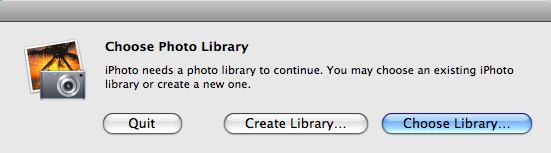
Note: occasionally it opens under other windows, so if you are waiting too long while holding option, let go of the option and touchpad/mouse button and use expose’ to see all windows and you’ll see it.
Quit: Duh
Create Library: you can make a new one here, and you can navigate anywhere to make it, even an external drive. No need to be limited to your Pictures folder.
Choose Library: Navigate to where ever your iPhoto Libraries are, even on an external drive and pick the library you want to view/use.
NOTE: If you just open iPhoto without holding Option, it will just open the last library you used, so you can have a default one if you want, just always open it once when you are done using another, or remember to Option choose the one you want when you open iPhoto.
SHOULD ALSO NOTE: If you are putting all your iPhoto libraries onto one drive, be sure you mirror it once in a while to another drive, or you’ll be crying the day that drive fails and you lose all your photos. (Yes, even Macs can have a hard drive fail, that is life, and when Jesus promised in this world you will have tribulation, he may have been thinking about PCs, but Macs can fail too.) I don’t think Time Machine will back up an external drive!
I also use this to give my wife access to one of my libraries as a “read only” – she knows any edits I won’t get, but having access to a backup of my library saves her needing to ask me for a picture she needs.
I hope this helps those with multiple iPhoto libraries or who would like to be able to better organize and manage their photos with separate libraries.




Note: If you have a few iPhoto libraries and double click one of them (from Finder), it opens iPhoto with your previously opened library… …NOT necessarily the one you double clicked.
For example, if you have a library called ONE and another called TWO…
You open ONE in iPhoto. Then close iPhoto. If you then double click on TWO it will open up ONE in iPhoto…
It’s a… ummm… feature.
That is a good point. When you double click on any file, it references what program it is associated with and simply opens that program. Then the program is in charge, and as mentioned above iPhoto will open the last library used. I never open programs from data files (except Word) because there are other issues with opening data that way. It is always better to open a program first and then open data files from within the program to minimize issues, and thats true on Mac or PC. There is no way for a program to “know” what file was double clicked after it opens, unless it IS a file being opened. Like when you click on a word doc or powerpoint file, you are clicking on a direct file. When you double click on an iPhoto libary, you are clicking on a folder, which technically can’t be ‘opened.’ So the software then proceses the last librar folder it opened. Confusing? Sorry.
Related Tip: DONT EVER OPEN A FILE IN AN EMAIL BY DOUBLE CLICKING!!! ALWAYS SAVE AND THEN OPEN. If you open from within your mail, you are opening a file buried in your mail attachments and if you hit “save” you often will never see those changes. The next time you “open” the file in your email, the changes will not be there. IF YOU DO open a file from within an email, BE SURE to use SAVE-AS when you save, and navigate to where you want the file. Otherwise you can lose everything you do with that file. Again, this is neither PC or Mac, it is a principle of how computers work.
My iPhoto library on my MacBook has gotten way too large and I need to get some of it moved to my external HD. Deciding to put all movie clips on my EHD. Or, after reading your post, maybe I should consider splitting them by years.
Anyway – I’ve been trying to decide whether it would be useful for me to purchase iPhoto Library ($19). What are your thoughts on this program vs. just doing what you can from iPhoto.
Thanks.