One of the Coolest Hidden Mac Tricks

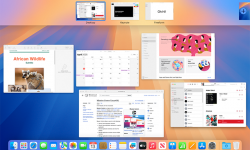
I could not live or work without Mac “Hot Corners” – once called Expose’. How do you navigate to your desktop when it is loaded with windows? Minimize them all one at a time? That’s for people with too much time on their hands. Mac has a very handy and cool feature called “Hot Corners” – as I set up a new Mac I was reminded quickly how much I use this! Instructions: Click the  Apple menu (top-left). Go to System Settings. Click Desktop & Dock. Scroll allll the way down (it’s hiding like a shy volunteer). Click Hot Corners… Pick a corner and set it to Mission Control (shows all windows), Desktop, Application Windows, etc. Click Done and enjoy feeling powerful. My Set Up: Move my mouse to lower right it shows ALL windows, upper right just the application you are in, such as Word. Lower left I set to Desktop, and BONUS TIP, you can click and hold on a file, drag to lower left, desktop appears, and then drag to where you want to drop it. OR, go to Desktop, grab a file, and then go to Mission Control – never dropping the file – and…

Continue reading

Connecting Digitally with Your Kids

For Father’s Day my son cracked me up when he wrote in my card, “I love you more than the games on my ipad! :)” So touching. But the reality is, my son is growing up in an age where he plays on an ipad as much as he does with physical toys and games. I’m delighted that Lego still captures his imagination as much as Minecraft, and that he’d still rather play outside than on his X-box, but at the same time I have a love-hate relationship with iPad games. There are times I wish he didn’t have one – but I also realize that touch-tablet technology is the world he is growing up in. While he can use the family iMac with ease, it is very likely that by the time he is a teenager, the computers we use will be the technological dinosaurs of a past age. I enjoyed growing up using the very first personal computers and leaping on each advancement as they came out. Even waiting in line for a new Apple OS to be released instead of the free downloads of today. But this ‘Old Dog’ has to recognize that both the reality of…

Continue reading

Quick Mac Tip: Get to your files faster

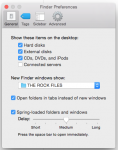
Mac users – when you open your Finder, does it always open to that annoying “All Files?” Would you like it to auto-matically go to your Dropbox folder or Ministry Files? I set each computer to open right where I go 95% of the time to get files…. and home it’s my Dropbox Folder, at work, it’s my church files. How? Open up finder and select preferences: And the under the General tab, look for New Finder windows show: And select “Other” and navigate to the folder you want. Now, every time you open a Finder window – you’ll be there! You’ll see above at work I want my Finder to always open right to my “Rock Files” instead all “All Files” then clicking on “Dropbox” and then navigating to the “The Rock Files” folder… when you are doing this countless times a day, this shortcut makes your time more productive. Hope it helps!  If you’d like more Quick Mac Tips, let me know, and I’ll post more.

Continue reading